
The Security Center allows you to configure additional protection settings for your TTT account.
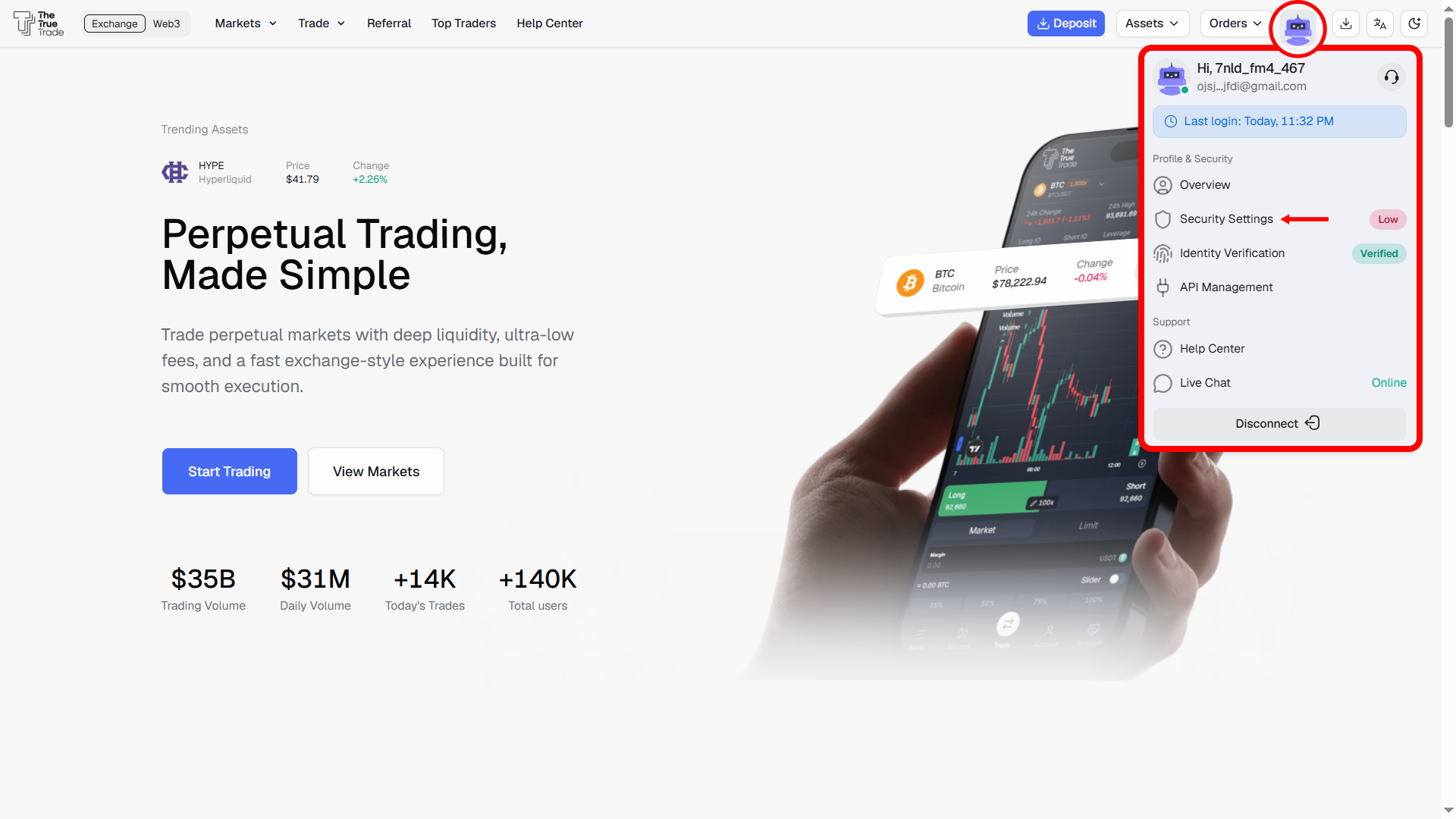
To access the Security Center:
Log in to your TTT account.
Tap the profile icon at the top-right corner.
Go to Profile → Security Settings.
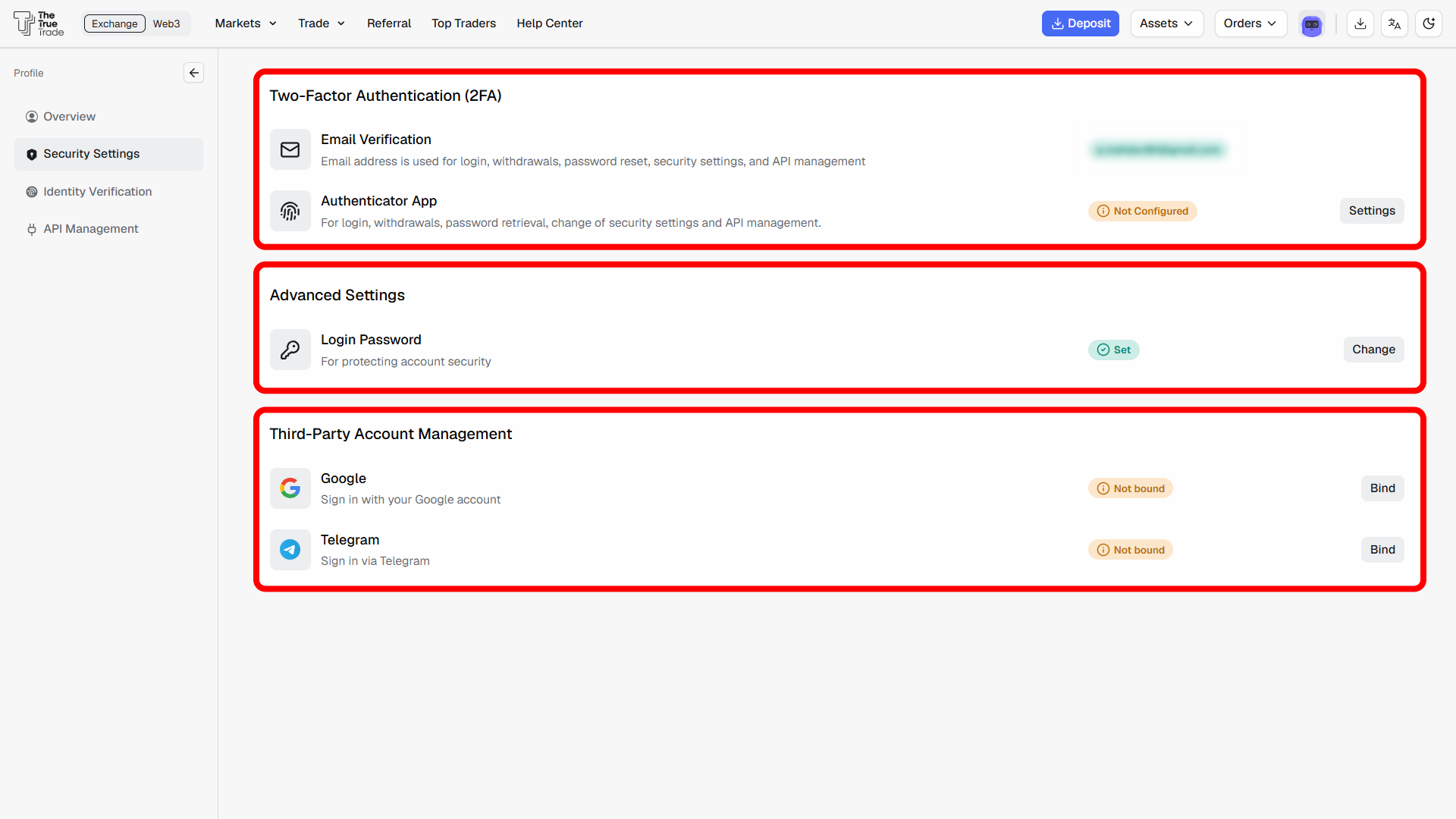
Your account security level may depend on:
Two-Factor Authentication (2FA)
Advanced Security Settings
Third-Party Account Management
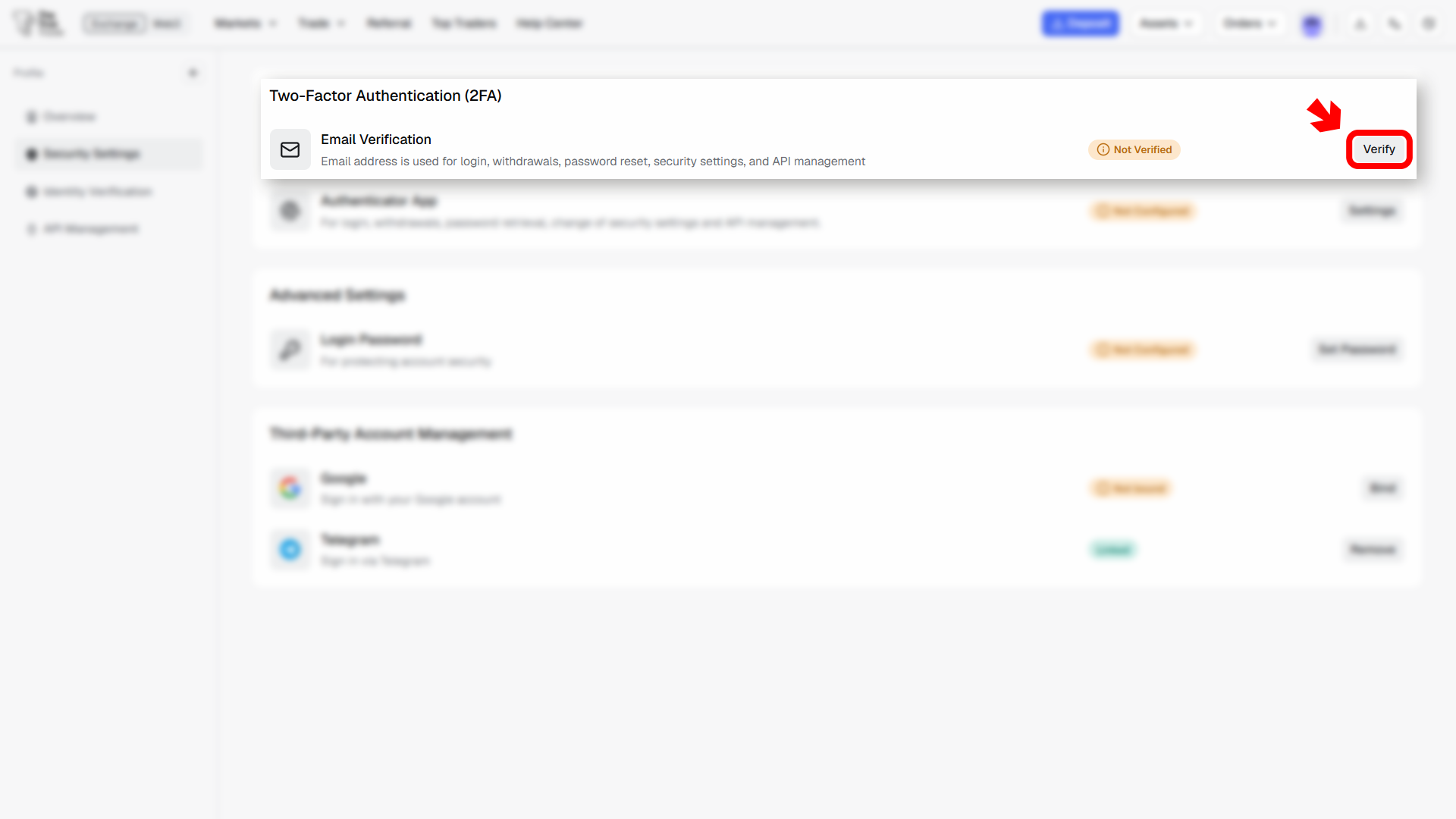
Your email address is used for:
Login verification
Withdrawals
Password reset
Security settings
API management
Tap the Settings button beside Email Verification.
2. Enter your email address in the opened window.
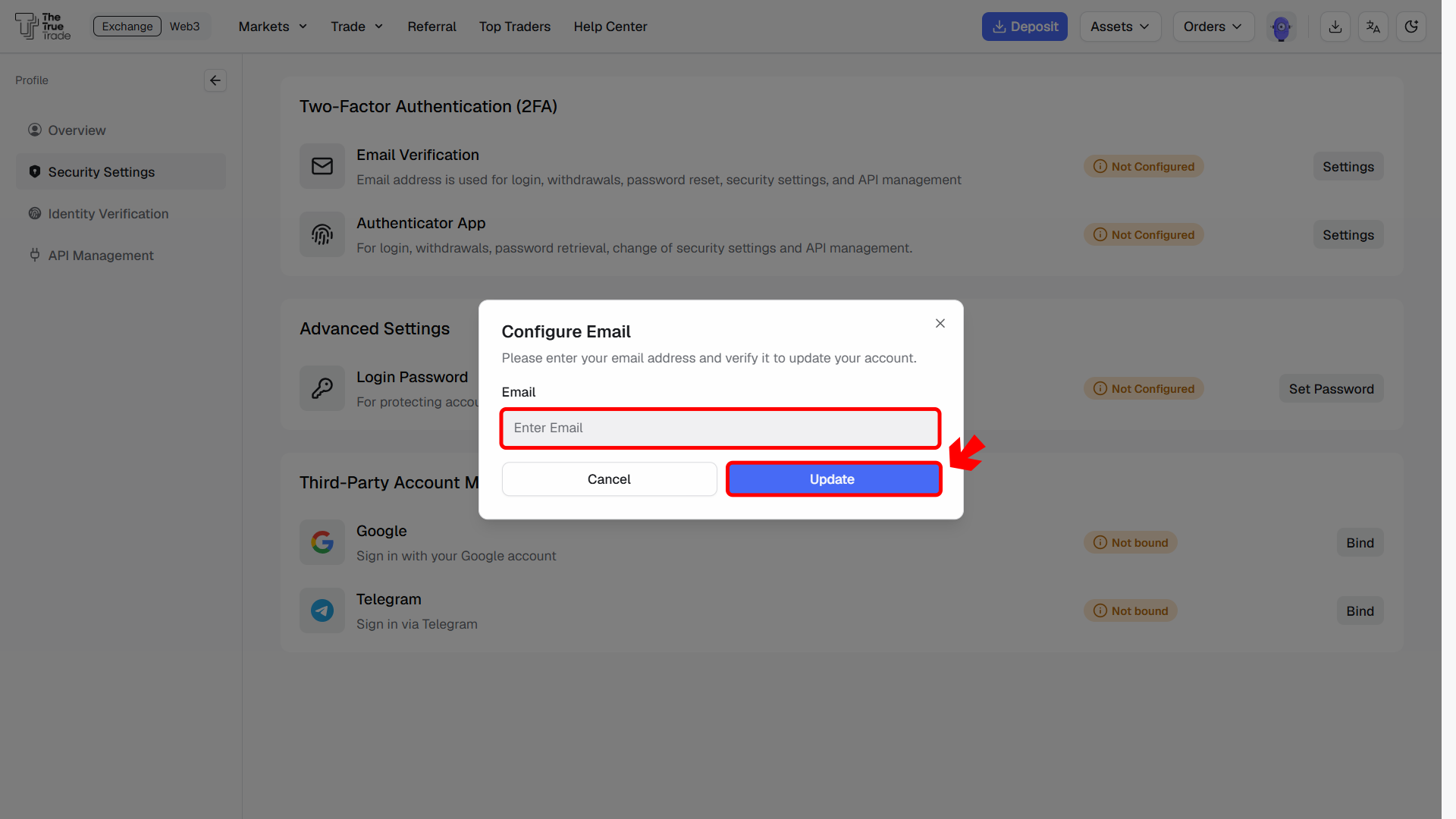
3. Enter the verification code sent to your email.
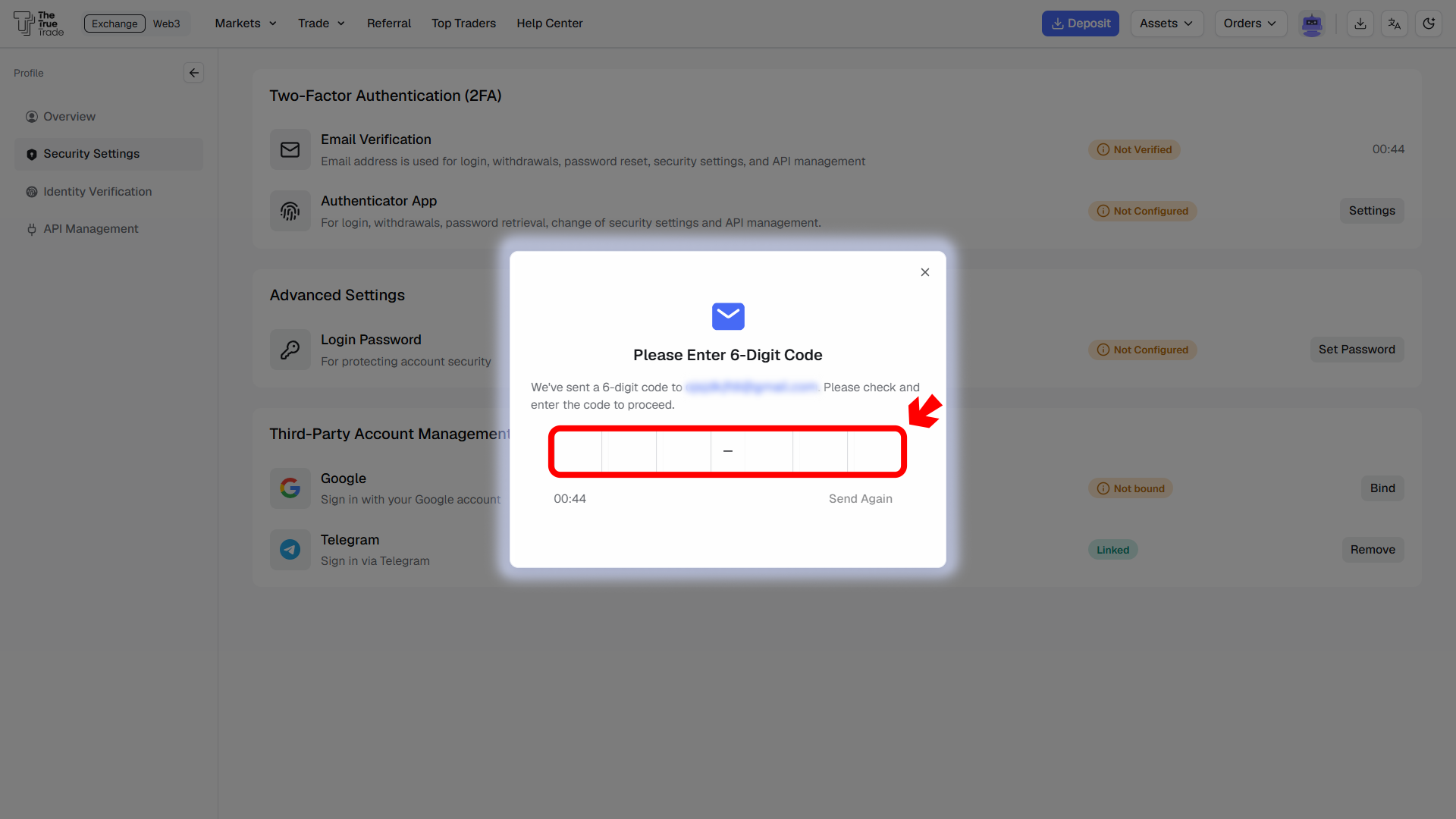
After successful verification, your email will be linked to your account.
The Authenticator App is used for:
Login verification
Withdrawals
Password recovery
Security setting changes
API management
Tap the Settings button beside the Authenticator App.
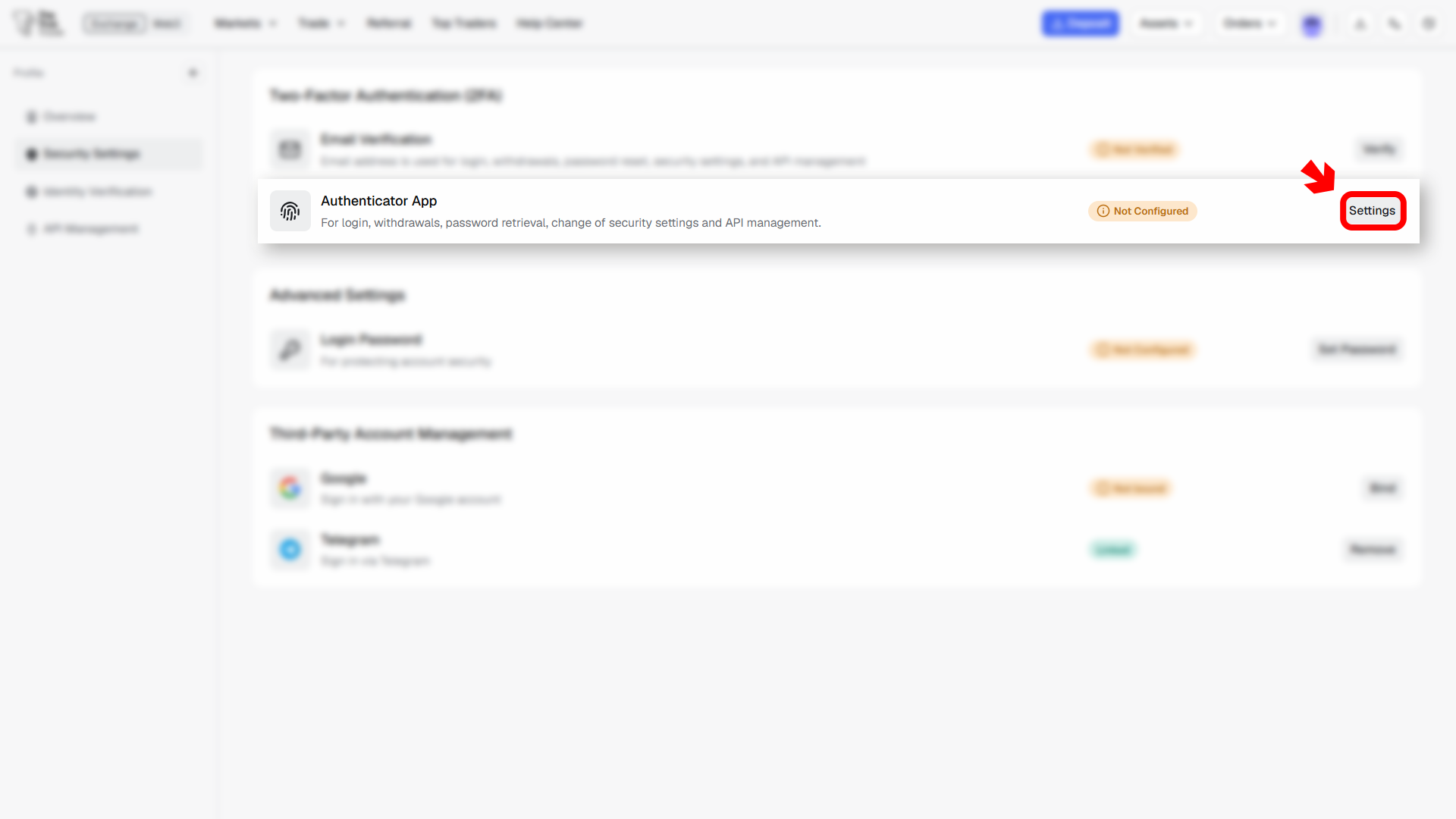
The Google Authenticator setup window will open.
In this window, you will see:
Instructions for downloading an authenticator app
A QR code for linking your account
A backup key for recovery purposes
Download and install an authenticator application if you do not already have one.
Supported apps may include:
Google Authenticator
Authy
Microsoft Authenticator
Open your authenticator app and scan the QR code shown on the screen.
Alternatively, you can manually enter the backup key into the authenticator app.
Save your backup key securely before continuing.
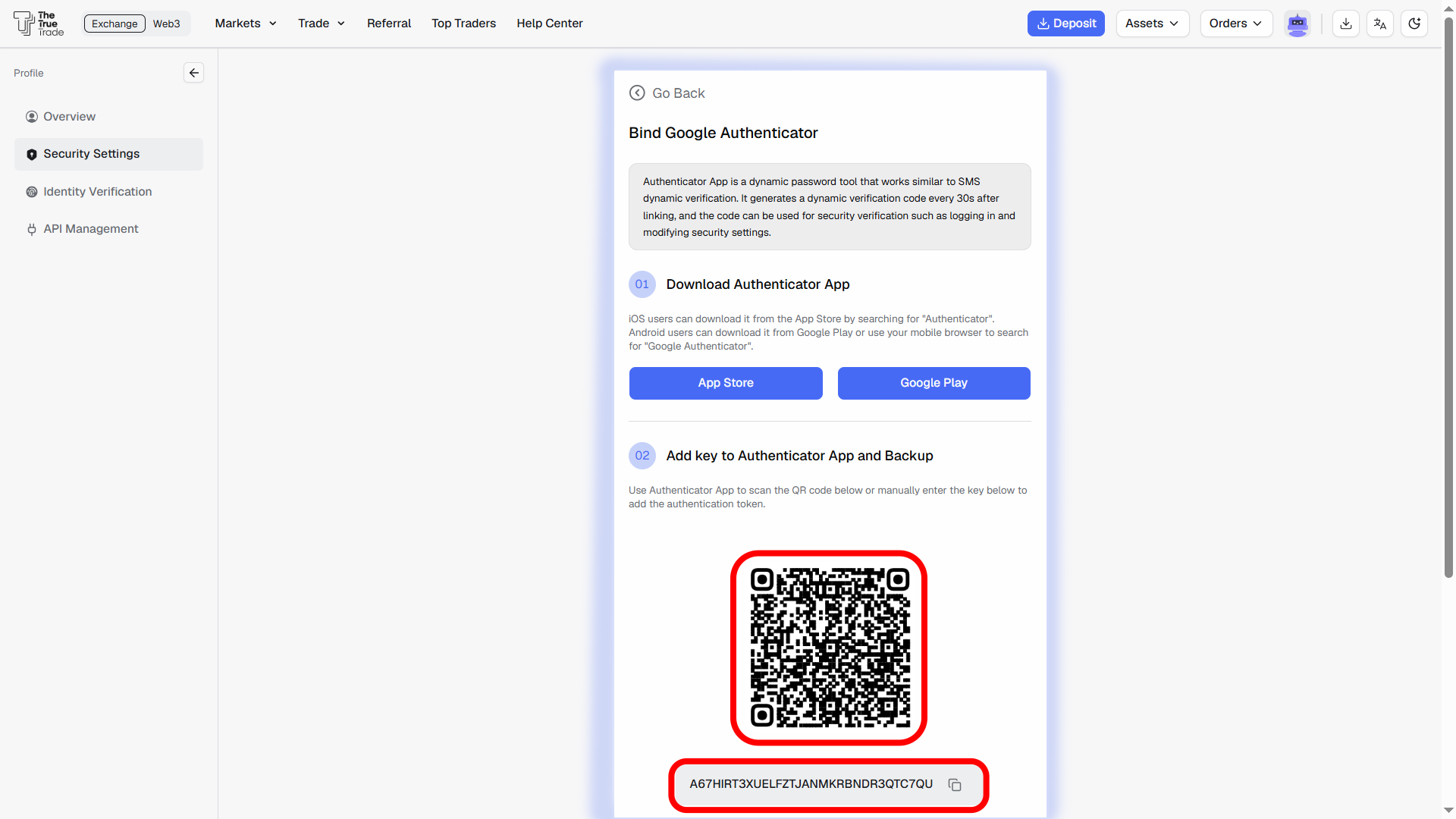
The backup key can be used to recover your authenticator if your device is lost or replaced.
After linking the authenticator app, enter the 6-digit verification code generated by the app.
Tap Link to complete setup.
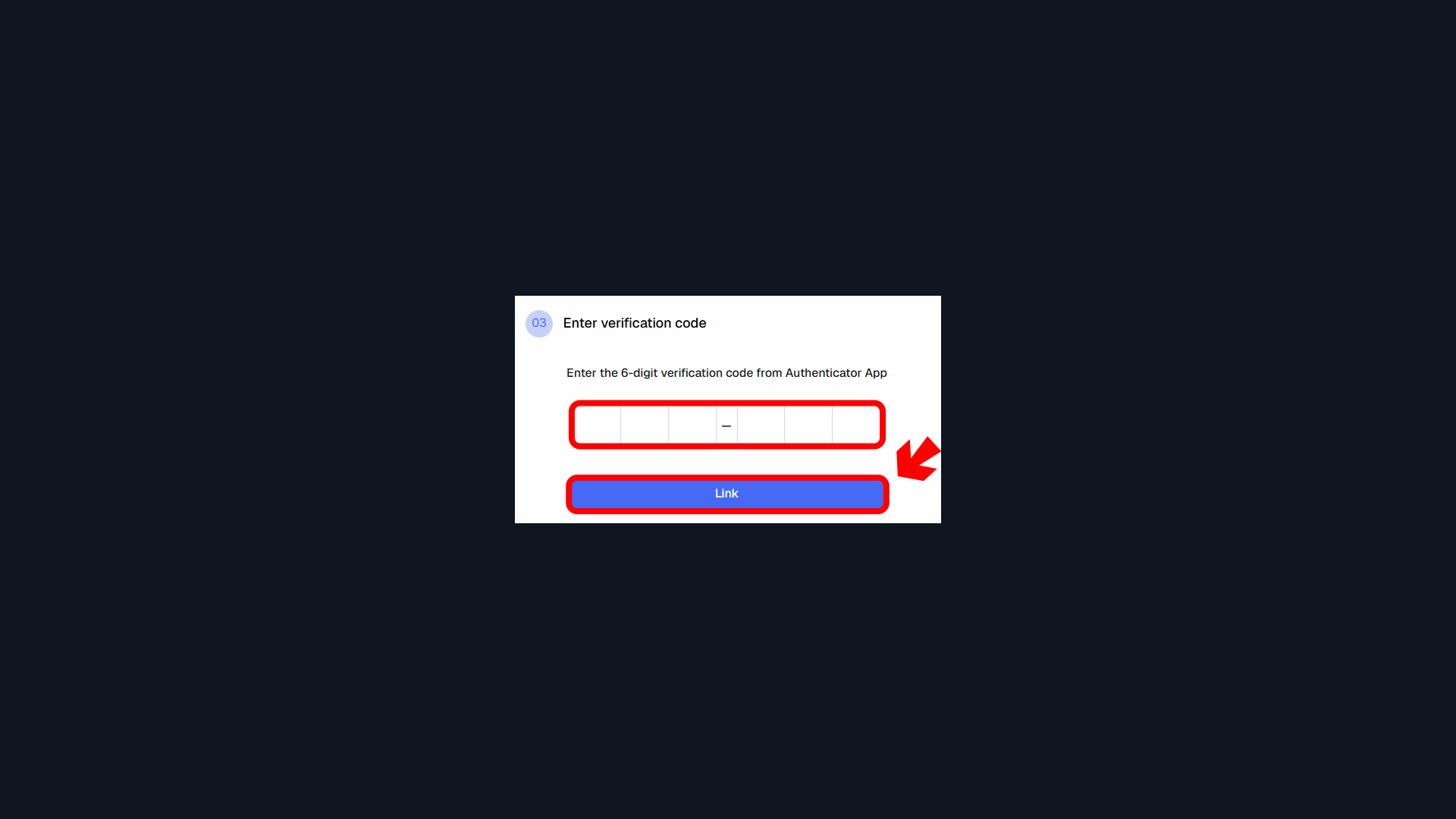
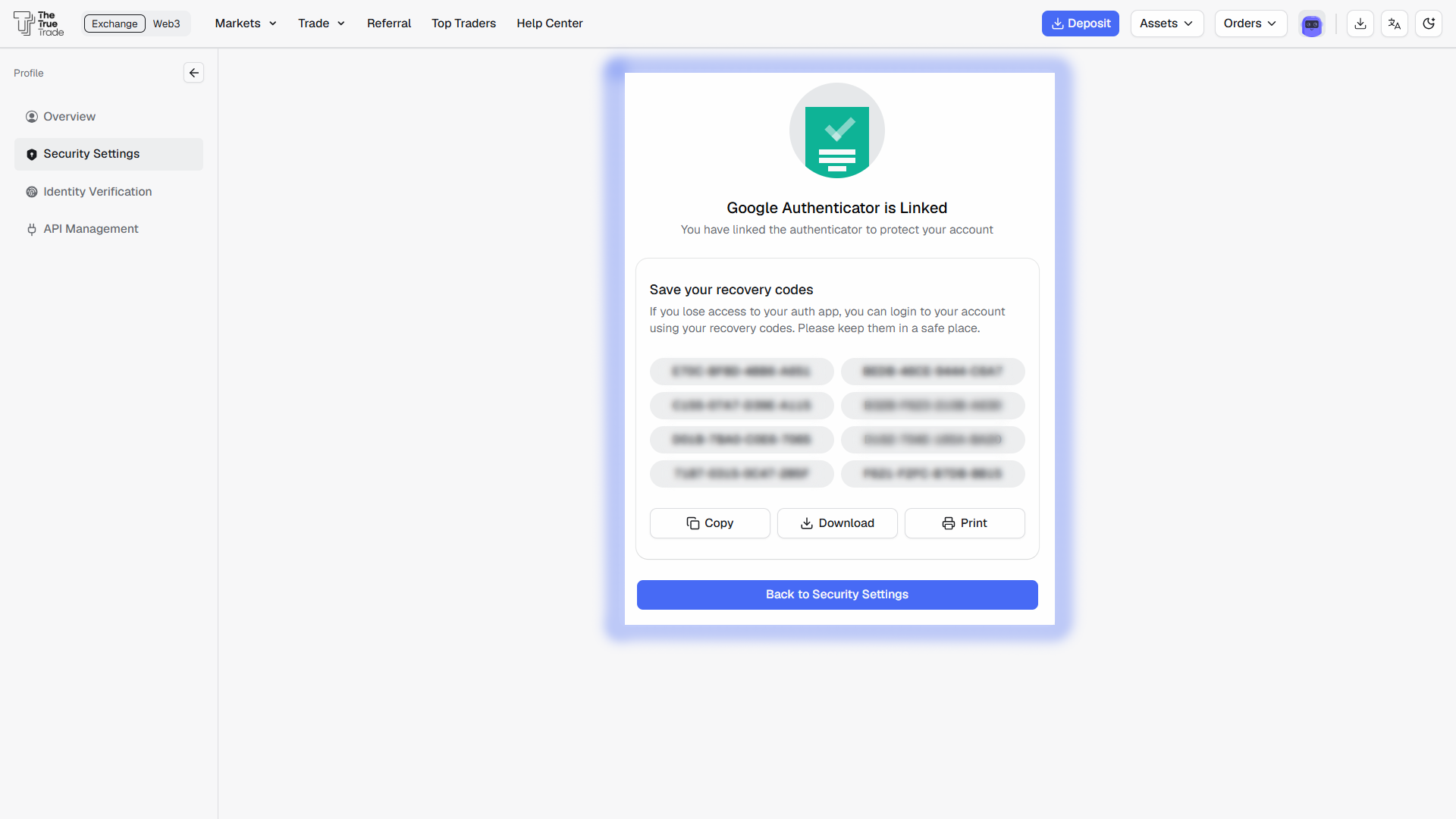
After entering the verification code, Google Authenticator will be successfully linked to your TTT account.
You will then receive recovery codes. These codes can be used to recover account access if you lose access to your authenticator app or device.
Make sure to save, download, or print the recovery codes and keep them in a secure place.
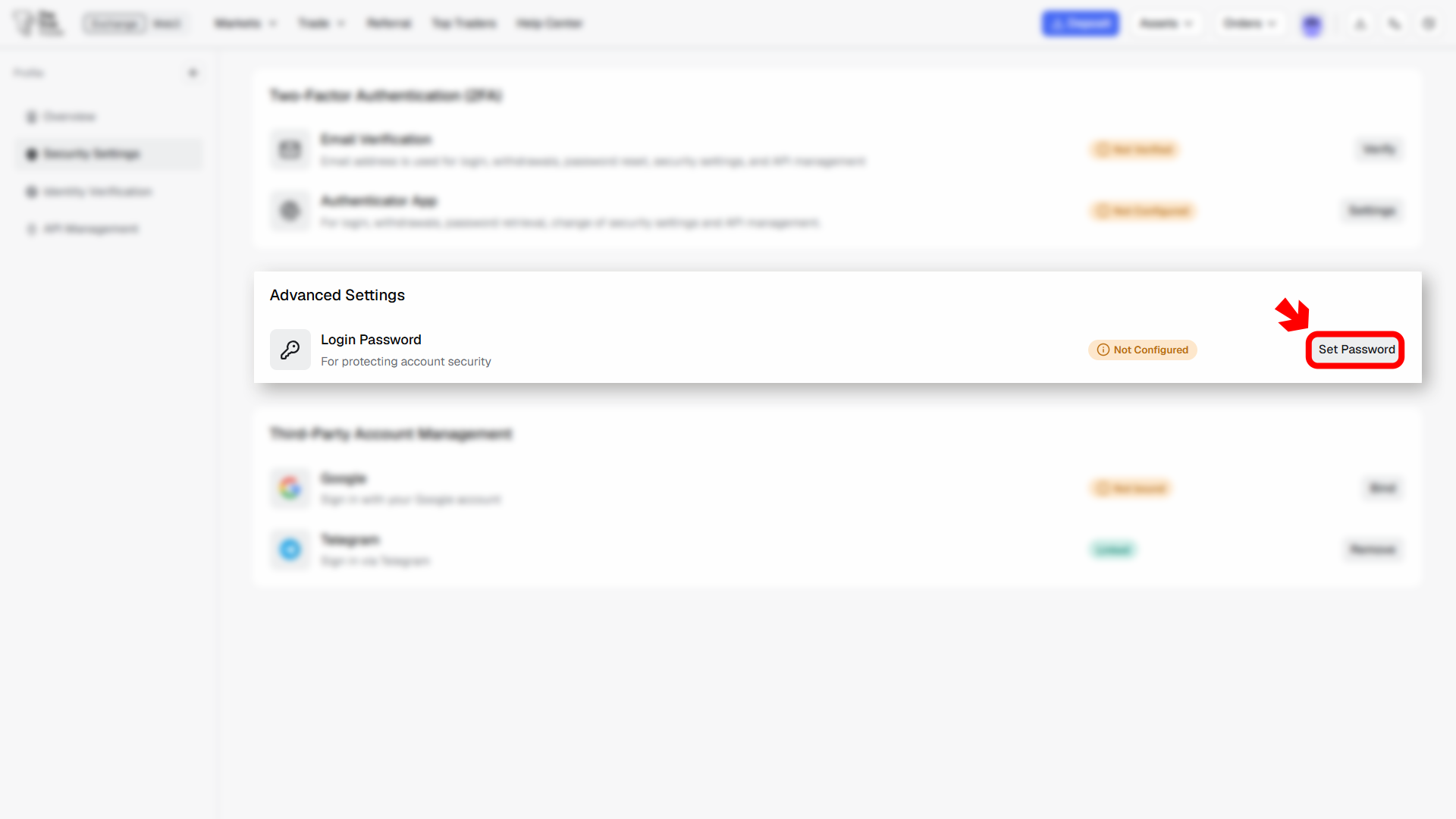
The login password is available for users who have an email linked to their account.
If you signed up using Email or Google, you can change your password from this section.
If your account does not have an email linked yet (such as wallet-based accounts), you must first bind an email address, then set a login password for your account.
Before configuring a password, make sure your email address is already linked to your account.
Tap the Set Password or Change button.
In the window:
Enter your current password
Enter your new password
Confirm your new password
Tap Confirm to complete the process.
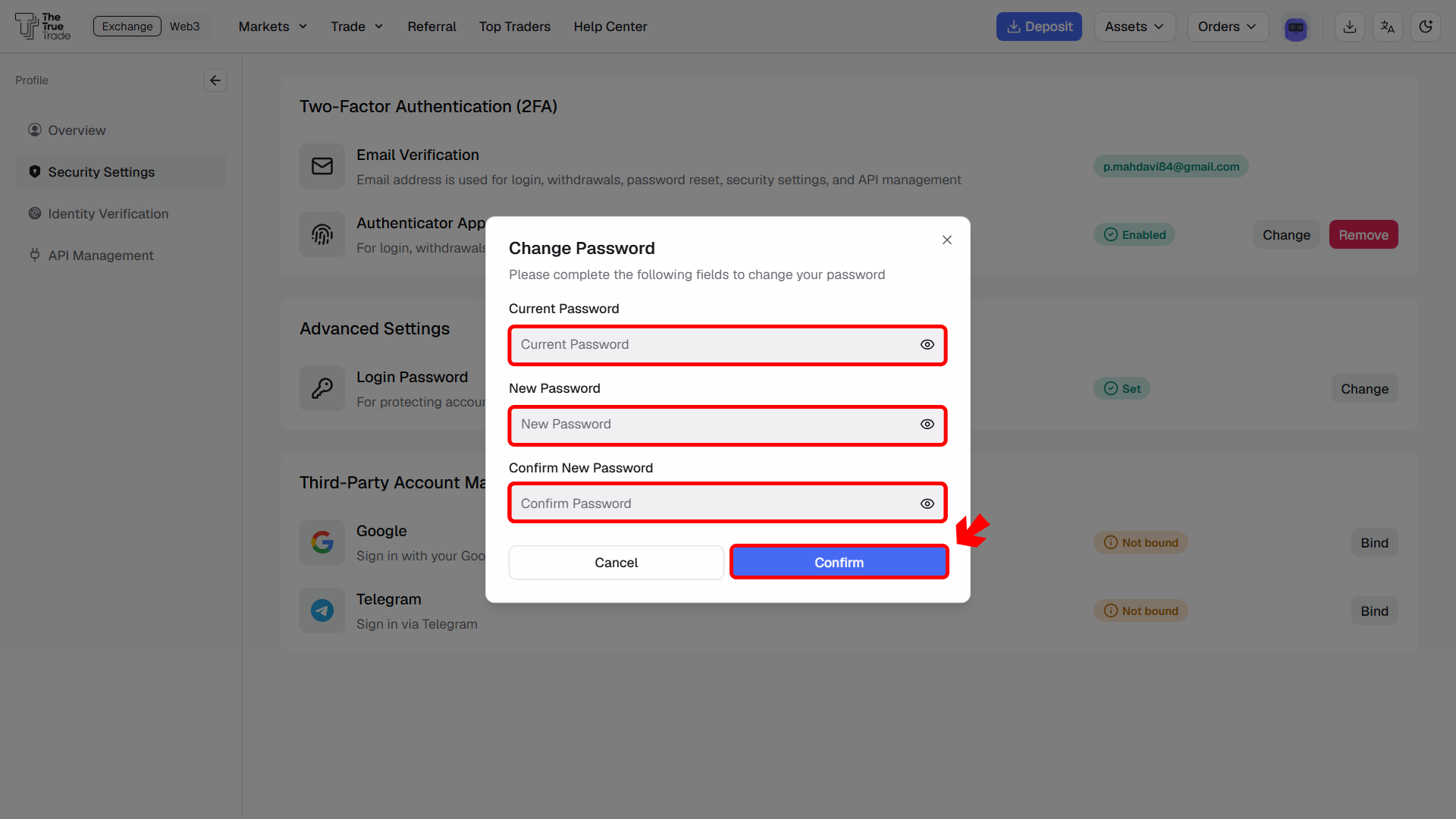
Your password will now be updated successfully.
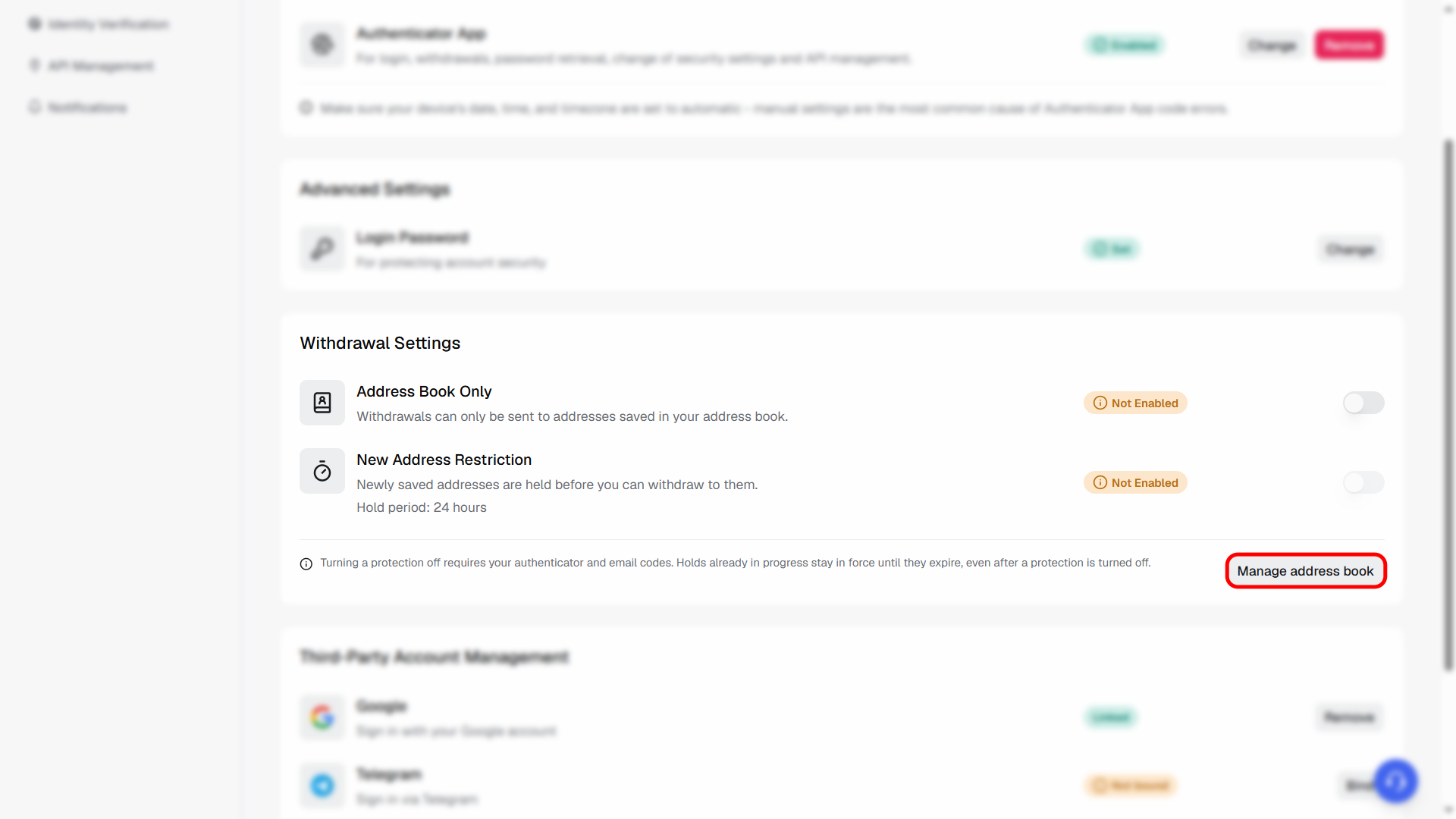
The Withdrawal Settings help protect your assets by restricting where withdrawals can be sent. Enabling these features adds an extra layer of security against unauthorized withdrawals.
Go to Profile.
Open Security Settings.
Navigate to the Withdrawal Settings section.
Enable or disable the desired security options.
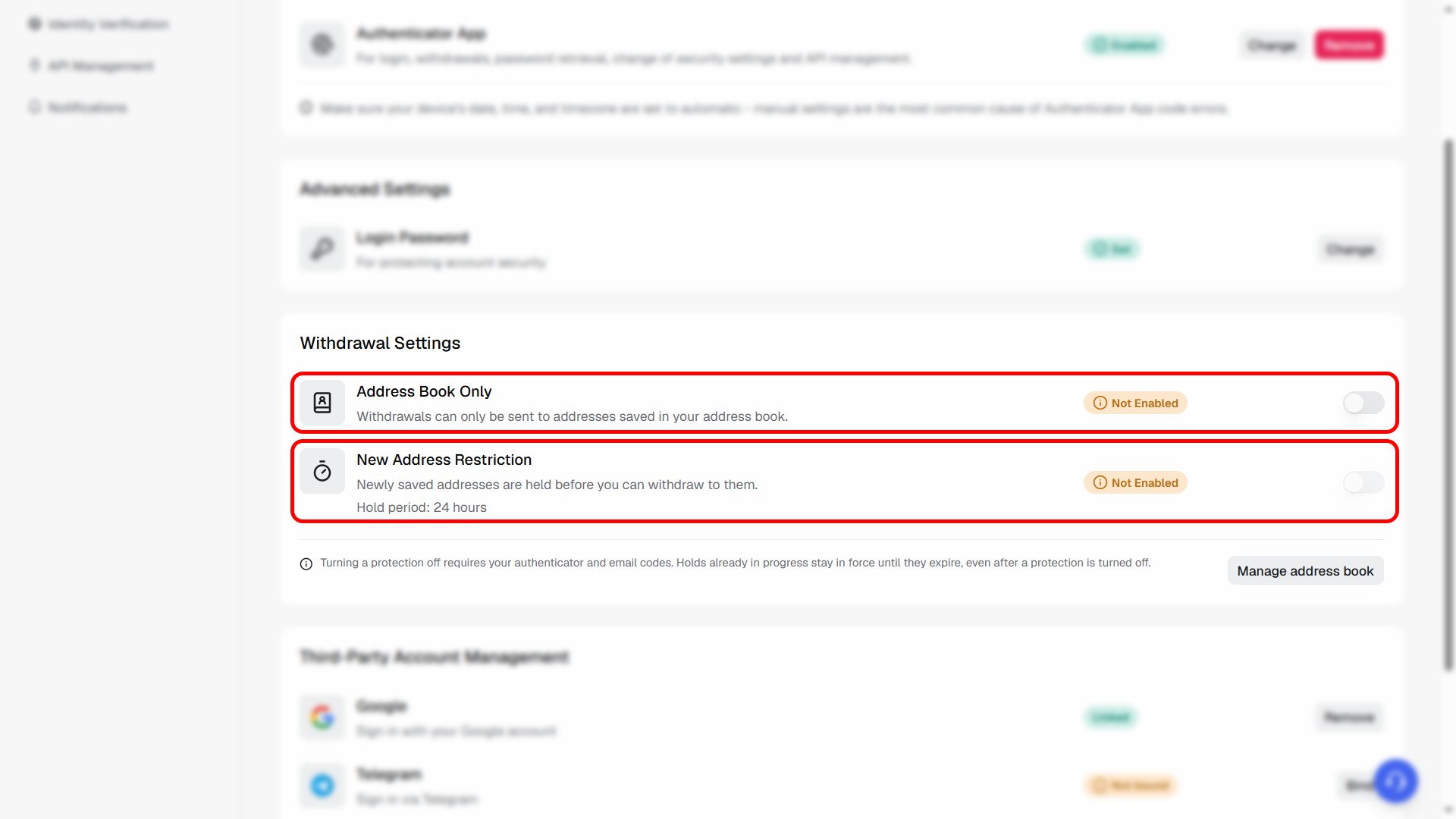
When enabled, withdrawals can only be sent to wallet addresses saved in your Address Book. Any address not on your saved list cannot be used for withdrawals.
This feature helps prevent withdrawals to unknown or unauthorized wallet addresses.
When enabled, newly added wallet addresses cannot be used immediately.
Each new address is subject to a 24-hour security hold before it becomes available for withdrawals.
This helps protect your account if an unauthorized person adds a new withdrawal address.
In the Withdrawal Settings section, click Manage Address Book.
Click Add Address.
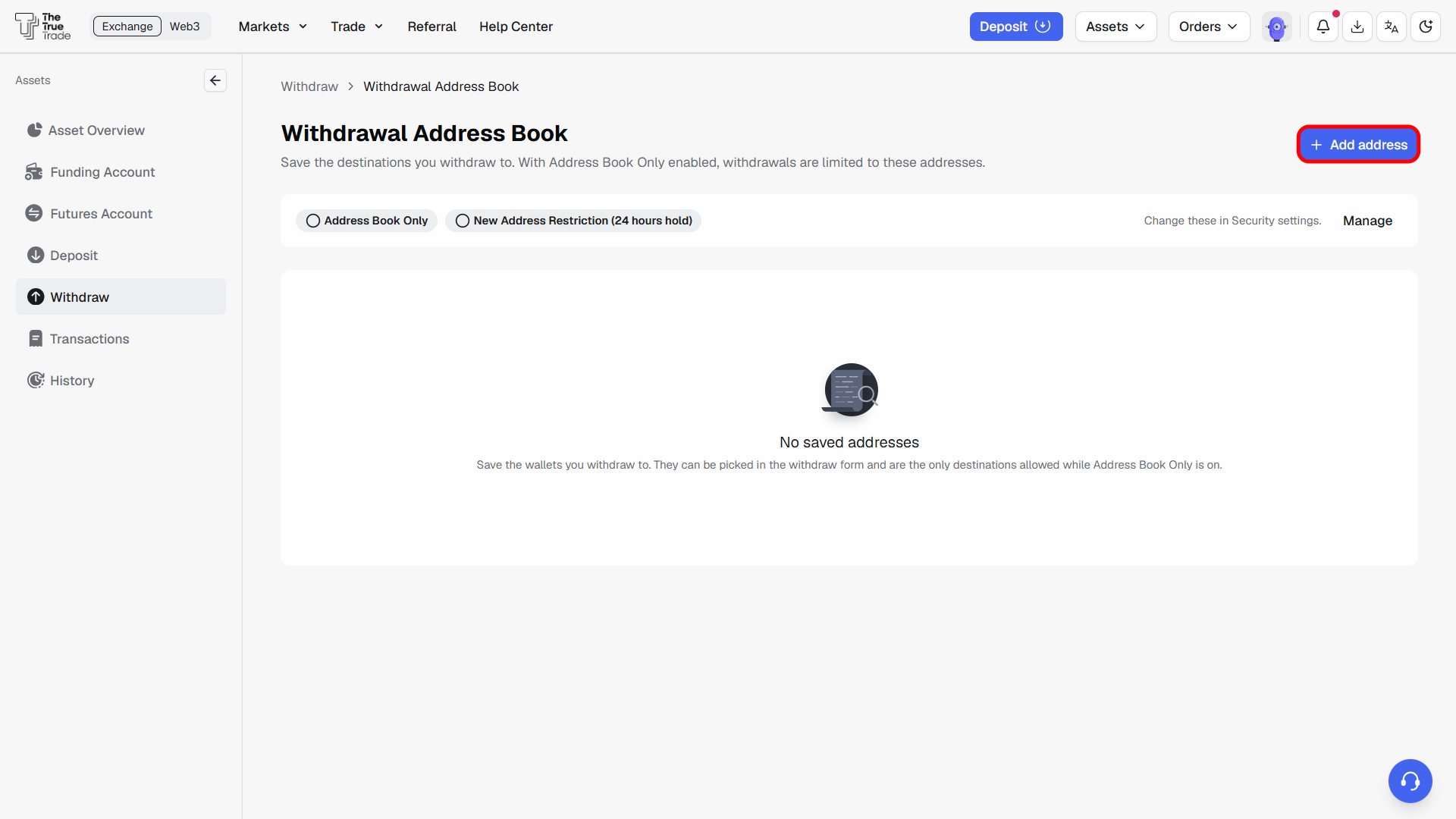
Select the address type (Standard or Universal).
If using a Standard Address, select the Coin.
Select the Network.
Enter the Wallet Address.
Enter a Label to easily identify the address.
Click Add to save the address.
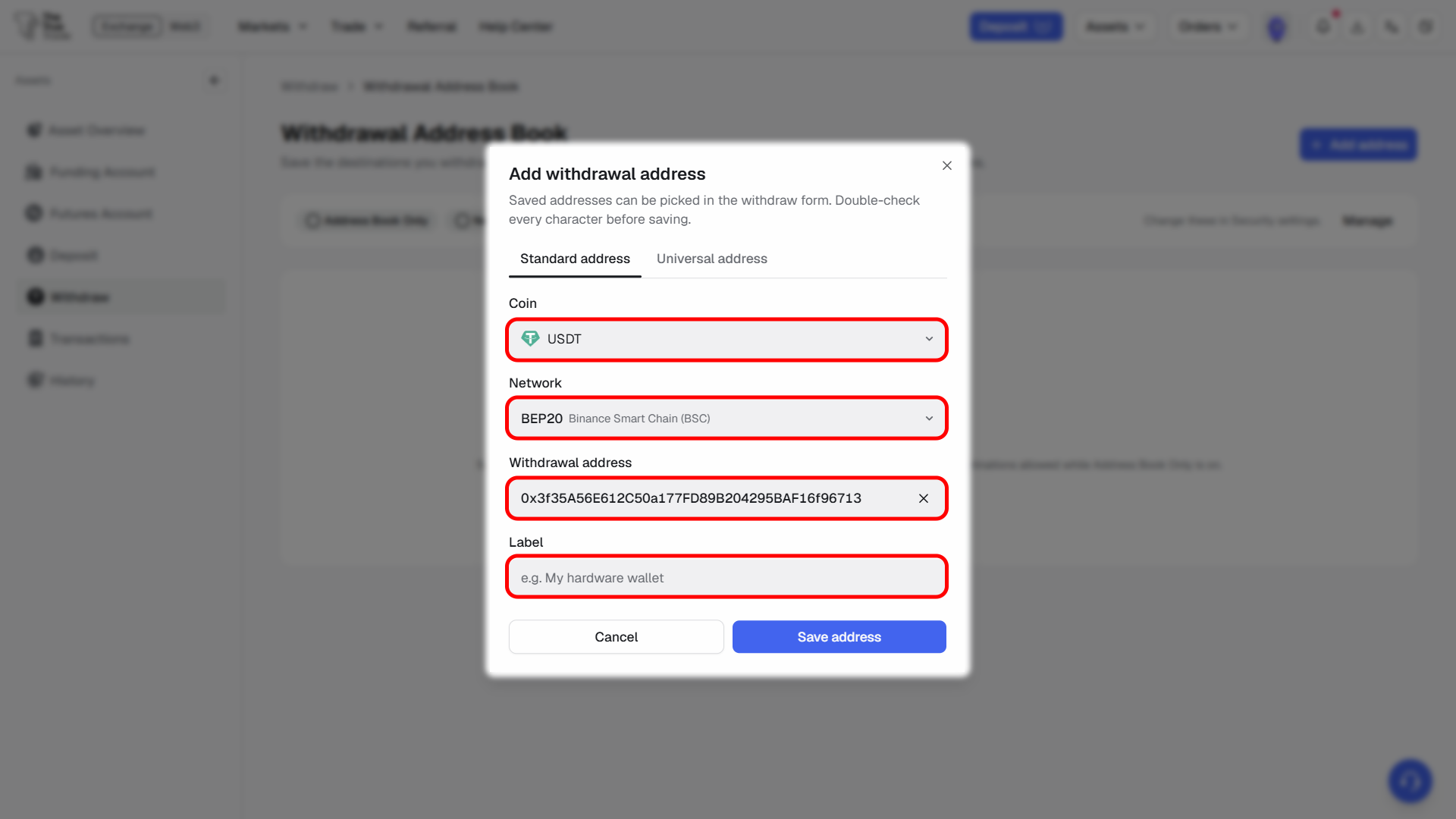
A Standard Address is linked to a specific coin and blockchain network. It can only be used to withdraw that selected cryptocurrency.
A Universal Address is linked only to a chain network. Any supported coin on the selected network can be withdrawn to this address.
Select the Coin (Standard Address only).
Select the Network.
Enter the Wallet Address.
Enter a Label to easily identify the address.
Click Add to save the address.
Note: Always verify the wallet address and selected network before saving. Withdrawals sent to an incorrect address or network may be permanently lost.
Third-party account management allows you to connect additional login methods to your TTT account.
Available options include:
Telegram
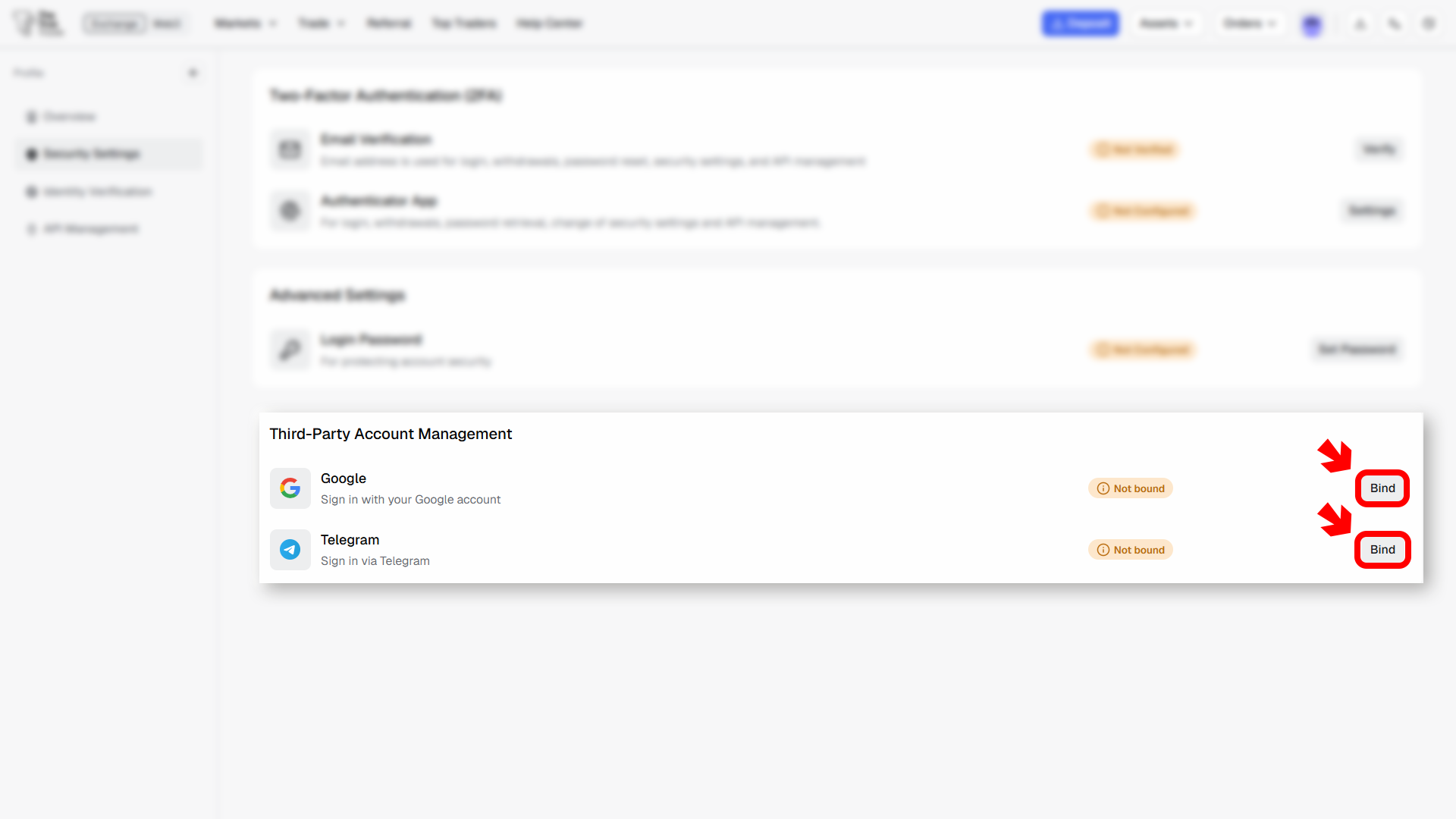
These accounts can be used for faster login and additional account access options.
Google account binding allows you to log in using your Google account.
Tap the Bind button beside Google.
Select your Google account.
Review the authorization request.
Tap Continue to approve access.
After successful authorization, your Google account will be linked to your TTT account.
Telegram binding allows you to log in using your Telegram account.
Tap the Bind button beside Telegram.
A Telegram authorization window will open.
Enter your Telegram phone number and continue.
Confirm the login request from your Telegram app.
Review the requested access permissions and tap Accept to continue.
After successful authorization, your Telegram account will be linked to your TTT account!
It is strongly recommended to enable both Email Verification and Authenticator App protection.
Store your authenticator backup key securely.
Never share verification codes or backup keys with others.
Security settings may affect withdrawal permissions and account recovery options.


